Weights & Biases Workspace Access Request Guide
Overview
This guide explains how to request access to an existing Weights & Biases (W&B) workspace by managing membership in the corresponding CIDM cloud group. Group membership is managed through the Cloud Group Management functionality in CIDM.
Before you can manage cloud groups, you must first request the Cloud Group Management Access role in CIDM. This is a one-time step.
Step 1: Request Access
How to access Cloud Group Management functionality in CIDM
Follow these steps to enable the necessary functionality in CIDM:
-
Log in to cidm.roche.com.
CIDM works on corporate computers both with and without VPN. Authenticate with your regular Roche username and password.
-
By default, the Cloud Group Management option is not available to all users in CIDM. You must request the Cloud Group Management Access : Cloud Group Access role in CIDM to view the Cloud Group Management Quicklinks.
-
Once your access is approved, log off and log in again in CIDM.
-
Navigate to Cloud Group Management in the left menu of the home screen.
What this access provides
The Cloud Group Management Access role makes the Cloud Group Management Quicklinks visible and lets you perform the View Group, Create Group, Edit Group, and Delete Group operations from the CIDM UI.
Once granted, the Cloud Group Management menu appears in CIDM with the following options:
-
Create Group
-
Edit Group
-
View Groups
-
Delete Group
Step 2: Overview & Naming Convention
Group Naming Convention
Each W&B team maps to a CIDM cloud group. Use the following naming format:
GLOAZU_WANDB_<TEAM_NAME>
This step describes how to create the cloud group(s) for a W&B team using the CIDM interface. Each group is created in Microsoft Entra ID.
For every W&B team you create two groups:
-
An owner group — holds the people allowed to manage membership (tech lead, their delegate, and the platform admins).
-
The team group — holds the end users who get access to the W&B team. Its owner is set to the owner group, so anyone in the owner group can add/remove members.
Create the owner group first, then the team group (the team group needs the owner group to already exist so it can be selected as owner).
Microsoft Entra ID Group Structure
For every W&B team, you must create two groups:
| Group Type | Naming Format | Example (test team) |
|---|---|---|
Team Group |
|
|
Owner Group |
|
|
When you create a group with multiple identities as owner, CIDM automatically
creates a backing workgroup named <GROUP_NAME>-owner-WKG (e.g.
GLOAZU_WANDB_TEST_OWNER-owner-WKG). You select this workgroup as the owner of the
team group.
Step 3: Create Cloud Group (Wizard Flow)
Both groups are created with the same 3-screen wizard from the Create Group quicklink under Cloud Group Management:
-
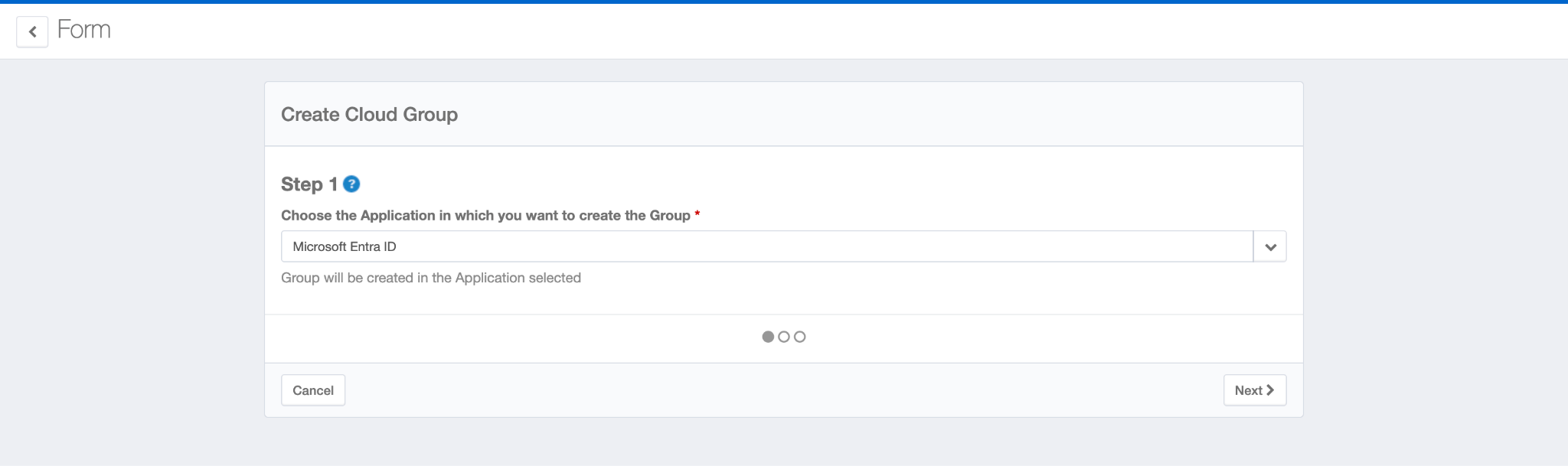
Step 1 — Application: choose Microsoft Entra ID. The group is created in the application selected.
-
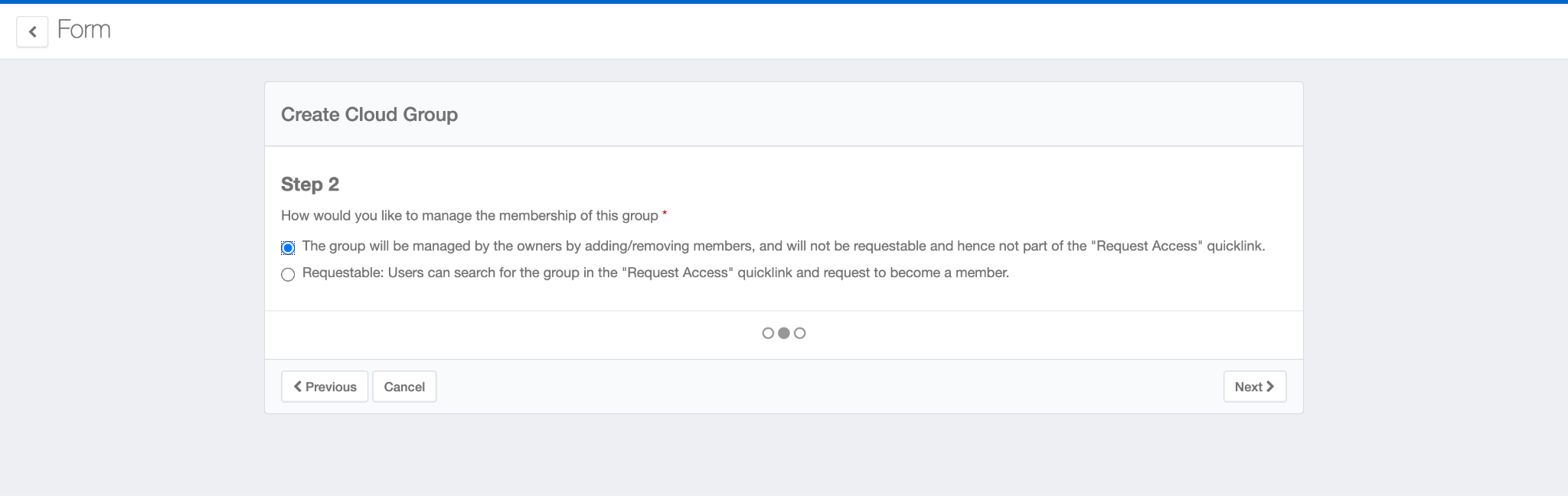
Step 2 — Membership management model: choose The group will be managed by the owners by adding/removing members (not requestable). This keeps membership under owner control and out of the Request Access quicklink.
-
Step 3 — Group details: fill in Group Name, Description, Group Owner, and Add user(s), then click Create Cloud Group.
Step 3a: Create the owner group
-
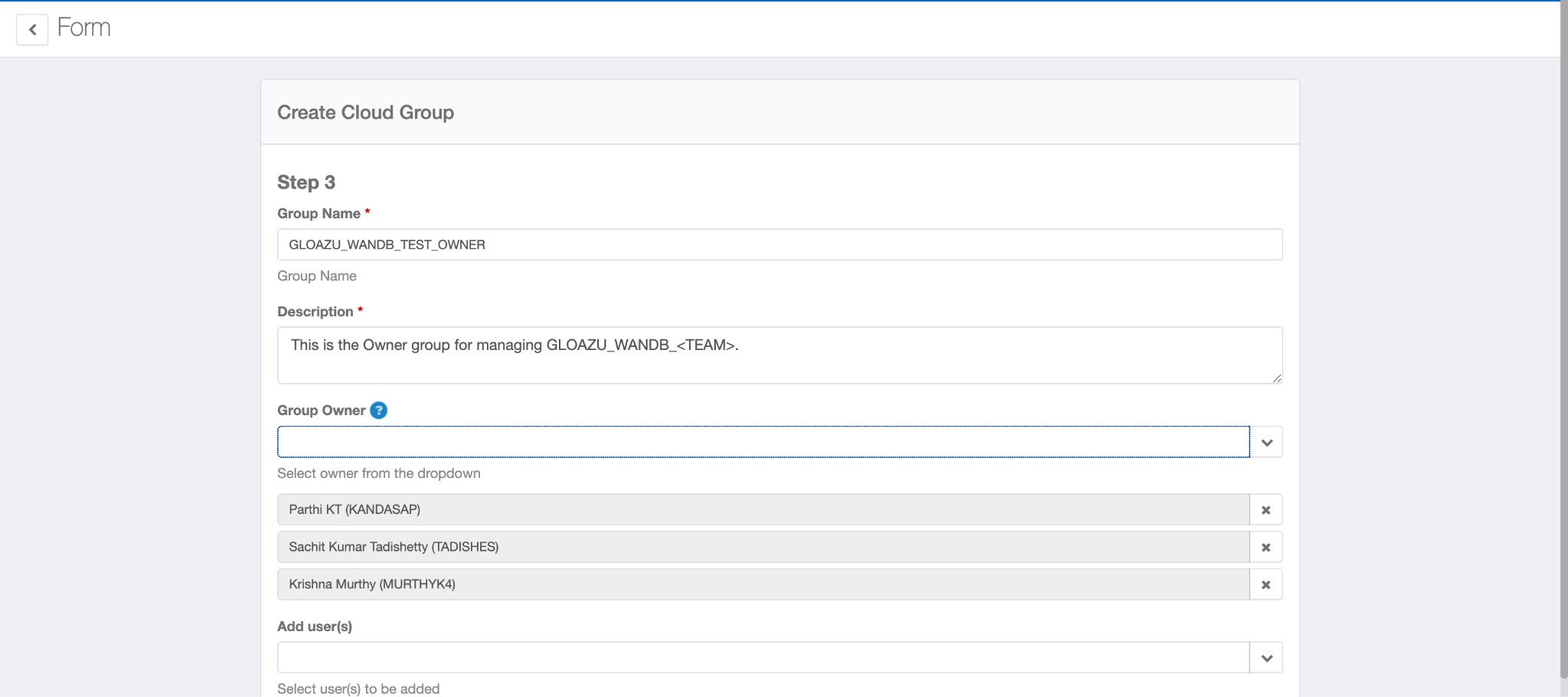
Run the Create Cloud Group wizard. On the Step 3 — Group details screen, fill in:
-
Group Name:
GLOAZU_WANDB_<TEAM_NAME>_OWNER -
Description: short description (e.g. Owner group for W&B <team> sync)
-
Group Owner: add the people who will manage the team. This must include:
-
the team’s tech lead and their delegate
-
the platform admins: Sachit Kumar Tadishetty (TADISHES), Krishna Murthy (MURTHYK4), Parthi KT (KANDASAP)
-
-
Add user(s): leave empty.
-
-
Click Create Cloud Group. Because multiple owners were selected, CIDM creates the backing owner workgroup
GLOAZU_WANDB_<TEAM_NAME>_OWNER-owner-WKG.
Step 3b: Create the team group
-
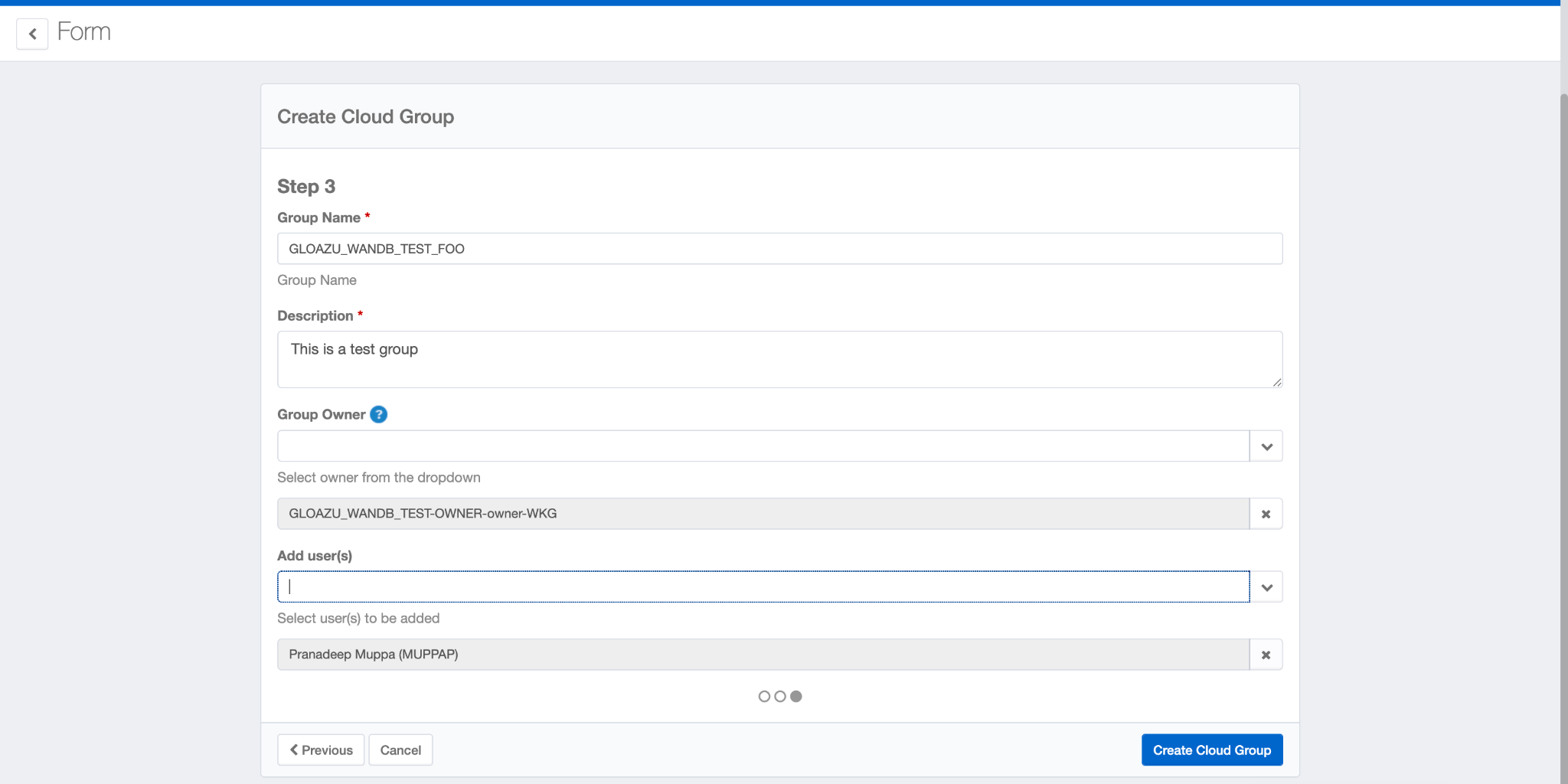
Run the Create Cloud Group wizard again for the team group. On the Step 3 — Group details screen, fill in:
-
Group Name:
GLOAZU_WANDB_<TEAM_NAME> -
Description: short description of the team.
-
Group Owner: select the owner workgroup created in Step 3a —
GLOAZU_WANDB_<TEAM_NAME>_OWNER-owner-WKG. -
Add user(s): add the end users who should get access to the W&B team.
-
-
Click Create Cloud Group.
|
From now on, the owner group members manage access: they add/remove end users on the
|
Step 4: Share the group name with the platform team
Once both groups are created, send us the team group name
(GLOAZU_WANDB_<TEAM_NAME>) so we can add it to the sync pipeline. The team group is
only provisioned to W&B after it has been added to the sync.
|
Synchronization Delay
CIDM and Entra ID sync is not instant. It typically takes 10 to 30 minutes for a newly created group (and later membership changes) to propagate from CIDM to Entra ID. Please allow for this delay before expecting the group or its members to appear. |